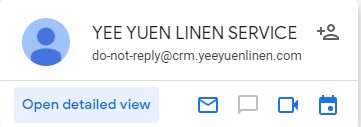
The Admin will send you an automated email with your password. The sender email name
and address is do-not-reply@crm.yeeyuenlinen.com as shown below. Depending on your
email service, the email may be found in your spam folder.
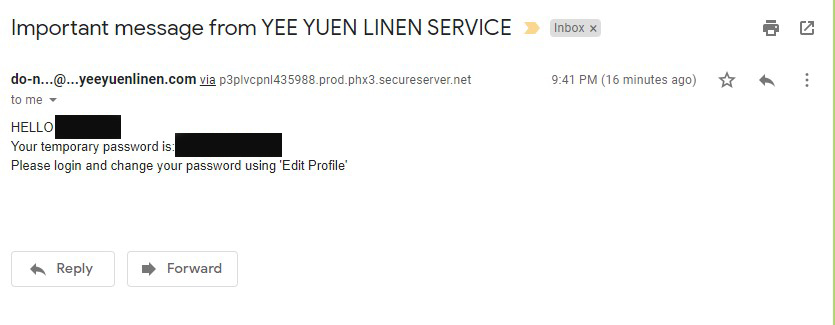
The actual email contents will look like this:
Use the password contained in this email to login to your account. Your username will be
your first name.
If you do not receive this email, please try adding the above email address to your
email white list, or contact list or ask your Admin for help.
Login To Account
Go to the this website and login:
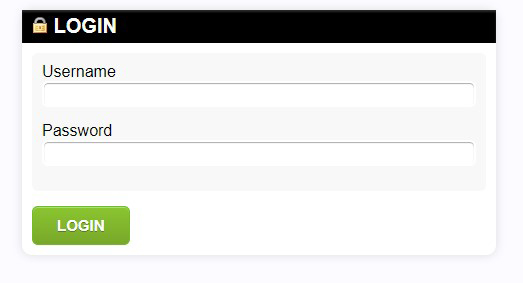
Enter your firstname in the text entry box under USERNAME. Now enter the password that was
emailed to you in the PASSWORD entry box. Now press the green LOGIN button. You can use your
mouse to press the button or press ENTER on your keyboard to move to the next entry, including
the LOGIN button. Once there, press ENTER again to push the button.
Changing Password
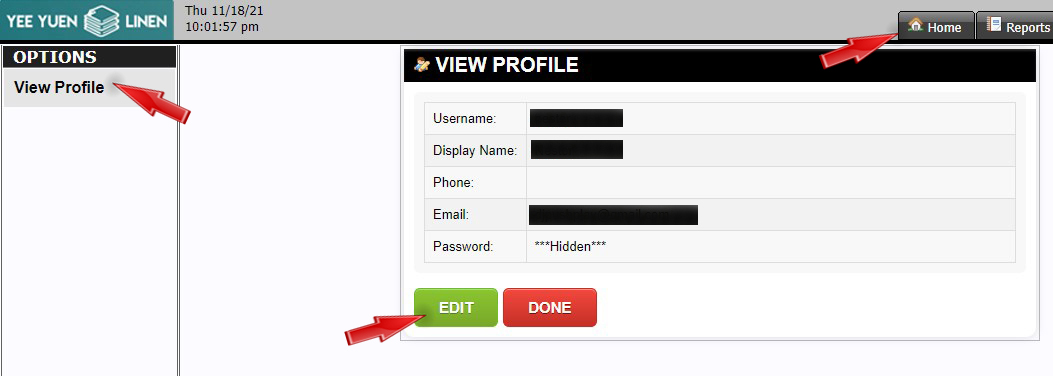
To change your password, first click the HOME tab on the upper right of the screen. Next, click
the VIEW PROFILE option on the left side of the screen. This will take you to this screen below:
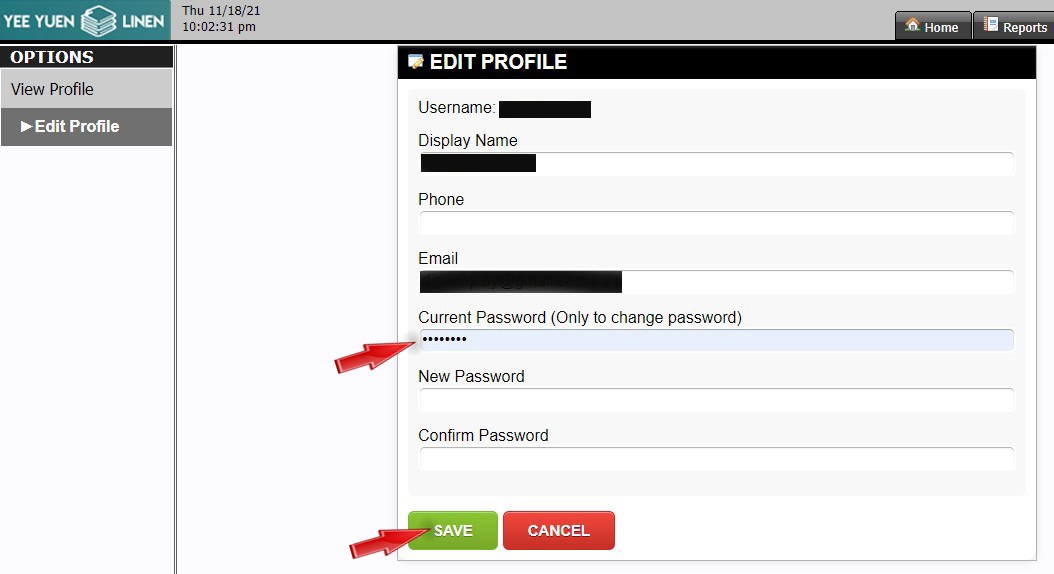
Now press the green EDIT button at the bottom. Next, the screen below will be shown.
At this point, you can change your display name if you wish. To do so, enter it in the text
entry box DISPLAY NAME. Notice that this is the name other users will see when they interact
with your account. The DISPLAY NAME is NOT the USERNAME that you use to login to your account.
Now, enter the current password in the text box CURRENT PASSWORD, then enter your new
password in the box for NEW PASSWORD and again in the CONFIRM PASSWORD box.
Now press SAVE to save your new password. To ensure that you entered the correct password, click
on the LOGOUT button at the upper right tab area and log back into your account using your
USERNAME and NEW PASSWORD.


 Help
Help
 Introduction